Short answer: An Android panel PC suits a kiosk or clock-in point when one app runs full screen, the station never moves, and many people use it briefly. Before choosing a model, confirm four things: the screen shape the app is designed for, the light at the position, how each person identifies themselves, and how the app will be locked and the devices managed. The last two decide more projects than the screen does.
One app, many users, no keyboard
A clock-in point at a factory entrance, a material request terminal at a store room and a visitor check-in screen have the same pattern. One application fills the screen. Each person uses it for a few seconds. Nobody should be able to leave the app, change settings or install anything.
That pattern fits Android well when the application already exists as an Android app or a web page. If the station must run Windows software, see our guide to Windows or Android on an industrial panel PC.
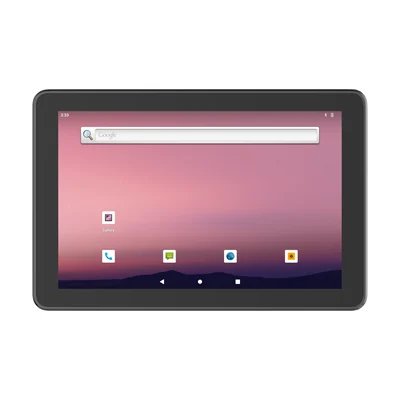
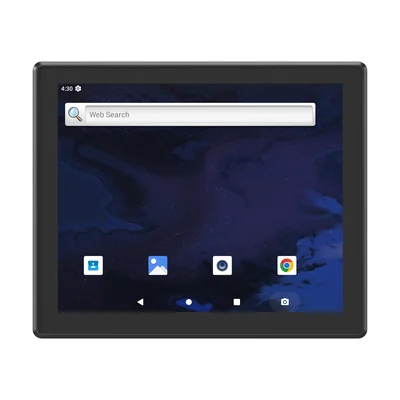
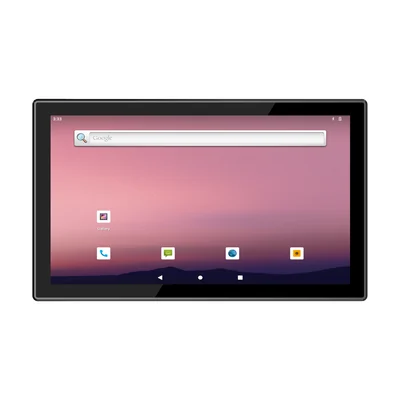
The RT-P10R, RT-P17R and RT-P21R share the same platform: Android 12 on a Rockchip RK3568 processor with 4 GB RAM and 64 GB storage. They differ mainly in the screen.
| RT-P10R | RT-P17R | RT-P21R | |
|---|---|---|---|
| Screen | 10.1 in, 800 × 1280 | 17 in, 1280 × 1024 | 21.5 in, 1920 × 1080 |
| Brightness | 700 nits | 500 nits | 250 nits |
| Touch | 10-point capacitive | 10-point capacitive | 10-point capacitive |
| Front panel | IP65 | IP65 | IP65 |
Screen shape and size
Check the screen shape against the app before the screen size. The RT-P10R's 800 × 1280 resolution is a tall, portrait-shaped panel, which suits a narrow column of large buttons at a wall-mounted clock-in point. The RT-P17R's 1280 × 1024 is close to square. The RT-P21R's 1920 × 1080 is widescreen, which suits a kiosk that shows a catalogue, a map or a form with several fields side by side.
Then confirm that the app's layout works in the orientation you will mount the unit. Run the app on a sample in that position before you design brackets or wall cut-outs.
Light at the entrance
Clock-in points often sit at an entrance, where daylight from doors and windows changes during the day. The three screens have different brightness ratings: 700 nits on the RT-P10R, 500 nits on the RT-P17R and 250 nits on the RT-P21R. The 250-nit RT-P21R is suited to an indoor position away from direct daylight. For a screen near a doorway, test the sample at that spot at the brightest time of day. Our guide to sunlight-readable displays explains what else affects readability.
How people identify themselves
A clock-in point is only as reliable as the way it identifies the person. Decide which method your time and attendance software accepts:
- Badge or card. Check whether the card is a 125 kHz proximity card or a 13.56 MHz card, because a reader for one does not read the other. Plan a reader that connects over USB and confirm the app receives its output. Our guide to HF RFID and NFC card compatibility explains what to check.
- Barcode or QR code on a badge. Plan a USB scanner and test the codes you print.
- PIN entry on screen. Works without extra hardware, but anyone who learns a PIN can use it.
The panel PCs list USB 3.0, USB 3.0 OTG and USB 2.0 ports for these devices. Name each reader in your enquiry so it can be included in the sample test.
Locking the app
A kiosk must stay in its app after a restart, a power cut or a curious user. On Android this is usually done with a dedicated-device or kiosk setting in your device management software, or by the application itself. Our guide to kiosk mode on rugged Android devices covers how to test it. Test three things on the sample: the app starts again after power is restored, the user cannot reach settings, and an administrator can still get in.
How the devices will be managed
Ask early how the stations will be enrolled in your device management system, and whether the build includes Google Mobile Services. Some management tools and apps depend on them. Our guide to GMS and AOSP builds on rugged Android devices explains the difference. Do not assume a build supports your enrolment method. Enrol the sample the way production units will be enrolled.
Network, power and mounting
Each of the three models lists one Gigabit RJ45 port, Wi-Fi and Bluetooth 5.0, with a 4G module as an option. A wired connection avoids clock-in failures when Wi-Fi at the entrance is weak. Two RS232 serial ports are standard, with an RS232 and RS485 configuration as an option, for a gate or turnstile controller with a serial interface.
All three list embedded, desktop, wall-mounted and cantilever installation. Our guide to mounting an industrial panel PC covers each method.
What to send with your enquiry
- What the station does: clock-in, self-service request, visitor check-in or another task
- The app, and whether it is an Android app or a web page
- The screen orientation and the light at each position
- How people identify themselves, and the exact card or badge type
- Your device management system and enrolment method
- Network at each position, and any serial device such as a gate controller
- How many stations you plan to pilot
Plan the sample test with our pilot validation checklist. The full range is on the industrial panel PCs page.
Devices for this workflow