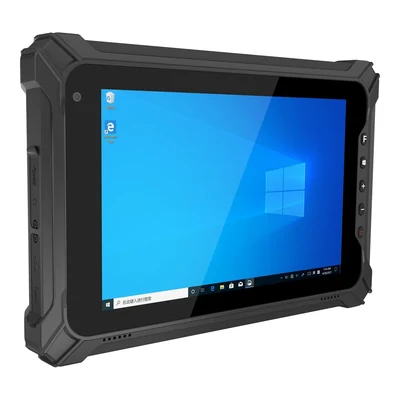
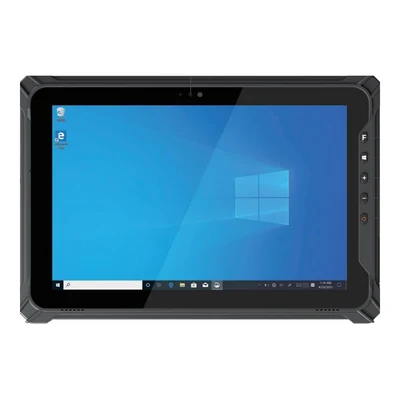
A rugged tablet can replace a field-service laptop for equipment diagnostics only when the required diagnostic application, instrument connection and technician interaction all work on the quoted tablet configuration. If one indispensable tool needs an unsupported driver, a direct connector the mobile kit cannot provide, or a stable keyboard-and-screen position that the job cannot create, keep the laptop for that task. The choice is between complete working arrangements, not between two bare device photographs.
This guide is for a service manager and IT buyer replacing aging technician laptops or equipping a new maintenance crew. It decides when to quote a tablet alone, a tablet with a dock and input accessories, or a replacement laptop from an appropriate supplier. AIDC GO offers a rugged-tablet approach for evaluation; this article does not establish that a listed TX model runs a particular vehicle, machine or diagnostic application.
Identify the one job the replacement must finish
Begin with a real service sequence: open the work order, identify the machine, connect the interface, read the diagnostic state, apply an authorized procedure, record the result and close the session. Name the application build, operating-system edition, instrument or vehicle interface, cable and any security token. A tablet that displays the work order but cannot complete the diagnostic session has not replaced the laptop.
Panasonic’s automotive and equipment diagnostics portfolio includes named rugged laptops and tablets rather than treating one form factor as a universal substitute. Its model examples are evidence of how that vendor segments this market, not proof that another brand supports those diagnostic packages. Ask the diagnostic-software and instrument owners for their current supported host list, versions and connection instructions before shortlisting hardware.
Make software and instrument support the first gate
Record whether the application runs locally, in a browser or through a remote session. For a local Windows tool, obtain its supported OS edition and processor architecture, license method, plug-ins and required driver package. For a browser or remote tool, still check whether the instrument connection is local and who owns a lost session. A login screen on a new device is not evidence that a complete diagnostic procedure will work.
Translate the application requirement into a configuration: processor architecture and required performance, RAM, and free storage after the OS, drivers, service documents and logs are installed. A browser-based service record and a locally installed diagnostic package can have different requirements even when they describe the same vehicle. Ask the software owner for the minimum and recommended configuration for the selected release; the tablet’s advertised storage is not its remaining capacity.
For the OBDwiz example below, the developer currently lists version 4.36.0. Its version 4.25 release notes introduced .NET Framework 4.8 and removed Windows Vista and Windows 8 support. OBDLink’s Windows setup guide lists Windows 7 SP1, 8.1, 10 and 11, with its walkthrough recorded on Windows 11. Use the selected application’s version requirements rather than an older adapter OS table. These sources do not supply a complete CPU, RAM and free-storage sizing specification for your workshop workload.
Do not confuse Windows application emulation with driver support. Microsoft’s Windows on Arm explanation says Windows 11 on Arm can emulate x86 and x64 user-mode applications, while kernel-mode components need Arm64 builds. The existing Windows on Arm tablet guide develops that architecture-specific decision. This matters only if an Arm-based candidate is actually being quoted; an Intel-based tablet has a different architecture question, but still needs the exact software and peripheral support confirmed.
Trace the physical data path as carefully as the application. A diagnostic cable may terminate at USB-A, USB-C, Ethernet, serial or a vendor interface. The serial-instrument guide separates connector shape, interface settings, driver and the data the application receives. The tablet-docking guide covers simultaneous peripheral and power paths. Neither establishes that a particular diagnostic adapter works with an AIDC GO tablet.
Separate a diagnostic host replacement from an ADAS calibration setup
When the workshop’s task includes advanced driver assistance systems (ADAS), decide whether the purchase replaces the computer used for an existing diagnostic workflow or adds the ability to perform a specified sensor-calibration procedure. Keep a suitable existing calibration installation in the comparison: changing the host need not mean buying its fixtures again. Conversely, being able to read faults or display a calibration menu does not demonstrate the required calibration. Identify the vehicle, sensor and prescribed procedure before comparing the working arrangements below.
Bosch’s ADAS portfolio brochure distinguishes static calibration, which uses positioned targets or reflectors and a fixture in addition to a diagnostic scan tool, from dynamic calibration involving a prescribed service drive. Some vehicles require both. These are procedure requirements, not interchangeable options chosen simply to avoid workshop equipment. Obtain the applicable vehicle and tool instructions; do not use a generic road distance, target spacing or workshop layout as a purchasing specification.
For a named equipment example, Bosch’s US DAS3000-3 page lists a calibration fixture and target components and identifies the ADS 10X Plus diagnostic scan tool as sold separately, used with its ADAS Calibration Software Package. This illustrates why a fixture quotation and a diagnostic-tool quotation can cover different parts of the same job. It does not make an arbitrary Windows or Android tablet a substitute for that scan tool, or establish AIDC GO compatibility, calibration-equipment supply or workshop services.
Compare the same intended vehicle and sensor work in each offer. For a host-only replacement, retain evidence that the existing interface, software and calibration equipment remain supported. For an added calibration capability, identify the required targets or reflectors, fixture and positioning equipment, applicable software access, installation conditions and operator preparation. Distinguish a fault-scan report from the procedure’s calibration result and record who confirms completion under the applicable instructions. This is an illustrative procurement comparison, not an actual package offer or a calibration tutorial. If the required procedure cannot be supported at the intended location, retain the appropriate existing arrangement or use a qualified service route rather than treating a more mobile screen as the solution.
Choose between an existing vehicle-data view and a local reading path
Before treating a tablet as a diagnostic-host replacement, decide where the required vehicle information will come from. Reviewing data already collected by a fleet system is different from connecting at the vehicle to obtain a current reading. Keep a suitable existing data service in the comparison: replacing its display client need not mean replacing its vehicle interface. Conversely, a tablet that opens a vehicle dashboard has not demonstrated a local diagnostic connection. Choose the route for the required result, not for the presence of a CAN, OBD or USB label.
For one named service route, Geotab describes a GO device sending vehicle information through the cloud to the MyGeotab database, from which a dashboard displays it. Its MyGeotab mobile application provides reporting on a phone or tablet and requires a Geotab customer relationship. Here the tablet consumes the service’s data; it does not have to become the device reading the vehicle bus. Confirm that the authorized client exposes the required vehicle, value and acquisition time. A stored or delayed observation can suit a review task without being a current measurement at the vehicle.
A separate local example is OBDLink EX. The manufacturer’s Windows connection guide places that adapter between the vehicle’s OBD port and the host’s USB port and requires the appropriate driver. Its OBDwiz guide then shows the application connecting to the interface and ECU and displaying supported values such as engine RPM. The adapter handles the vehicle-facing communication; the host still needs software that requests and interprets the required data. This is a named OBDLink/Windows route, not evidence that any USB cable, browser dashboard or Android application provides it. The guide also warns that gauges visible before connection can include parameters the selected vehicle does not report.
Receiving a response is a further checkpoint, not the final readout. In a separate protocol illustration, Elm Electronics’ ELM327L data sheet, version A, pages 32–33, uses a mode 01/PID 0C request and a possible response of 41 0C 1A F8. The response identifies the requested parameter; its two data bytes represent 6904 quarter-rpm units, or 1726 rpm after conversion. A terminal showing those bytes and an application showing the correctly labelled engine speed are different deliverables. This explains the interpretation step; it is not a tested OBDLink EX trace or an instruction to combine the named products into one package.
Keep ordinary readings, fault diagnosis and control separate. A supported engine-speed readout does not establish access to every ECU, manufacturer-specific fault information, an actuator test, coding or calibration. Specify those as separate required functions with the applicable vehicle, interface and software procedure. Do not use a state-changing operation to prove a read-only requirement. For the reading task, ask what the application returns when the requested parameter is unavailable or communication stops; an unsupported value or a retained last reading must not silently become a new zero measurement.
In an illustrative purchasing comparison, one offer equips a worker to view an existing service’s vehicle record; another equips the host for an specified local adapter and reading application. Compare them against the same requested value and working situation. For the service route, retain the supported vehicle-data source, account access and client connectivity. For the local route, name the adapter, cable, driver, host OS, application access and supported parameter. Have the application owner demonstrate the value, unit, vehicle identity and time, then show the permitted disconnected or unavailable result. That choice determines whether the tablet needs only the service client or an actual acquisition path before its screen, keyboard and work kit are compared below. These examples do not establish AIDC GO supply of adapters, software, subscriptions or vehicle integration, or compatibility with either named system.
Compare three complete working arrangements
A quote should show the full assembly that the technician would carry, mount, connect and support. The table is a decision aid, not an AIDC GO compatibility list.
| Arrangement | When it could fit | Evidence that decides |
|---|---|---|
| Tablet used alone | Fit: The application is supported on the exact tablet OS and the instrument connects through a documented tablet path; touch input and on-device power suit the working position. | Decide with: Application and driver support statements, exact port/adapter identities and a completed diagnostic record from the proposed configuration. |
| Tablet plus work kit | Fit: The tablet is useful away from the machine but needs a documented dock, keyboard, mount, external power or instrument adapter at the service point. | Decide with: Every accessory part number, connection and power path, removal/reconnection behavior and a working-position trial with the full kit. |
| Keep or replace a laptop | Fit: A required tool or driver has no supported tablet path, or the task needs sustained keyboard, screen and direct-port use that the tablet assembly cannot provide. | Decide with: The named blocker, laptop replacement specification and a separate plan for any mobile inspection tasks that still benefit from a tablet. |
As a bounded illustration, Dell’s Latitude 7030 Rugged Extreme Tablet Owner’s Manual (External ports) lists a configurable option bay with alternatives such as USB 3.2 Gen 1, a barcode scanner or RJ-45. Those alternatives are model- and option-specific: the page does not show that all choices are present simultaneously, nor that an AIDC GO TX tablet has the same bay. It shows why the quote must name the installed option instead of counting ports from a family photograph.
Do not move a desk setup into the field by assumption
A service-bay laptop may sit on a cart with the interface cable supported and a full keyboard available. A tablet used beside a machine may be held in one hand, placed on a stand, or mounted in a vehicle. Sketch where it rests while the cable is connected, where the operator views warnings, and whether a second person must hold equipment. If the technician must enter long codes or write a report, evaluate touch, a detachable keyboard or a fixed keyboard in the actual posture; the tablet-keyboard guide covers the input assembly.
Power can reverse an otherwise attractive choice. Include the diagnostic session, screen-on time, instrument power draw, and any dock or vehicle supply in the task description. Do not turn a manufacturer battery figure into a guaranteed service duration. If an external supply or mount is needed, ask for its documented compatibility and installation arrangement, not merely a matching plug. A tablet that works briefly on a desk may fail the purchase decision when the actual equipment location has no safe place to set it down.
Run one representative replacement trial
Use the existing laptop as a reference, not as an assumed benchmark for speed. On the exact proposed tablet and accessories, have the application owner complete a permitted diagnostic task on representative equipment: connect, identify the equipment, read the expected state, perform an authorized action, record the result and disconnect. Capture the application version, OS build, adapter/driver version, connection path, time and final business record. Repeat the step that actually differs when a dock, cable or processor option changes.
Make the failure path explicit. If a cable drops, the tablet sleeps, the vehicle power is interrupted or the application loses its session, determine whether the last command was accepted before retrying it. Do not use a live safety-critical control action merely to create a test fault. A supported simulation or maintenance procedure agreed with the equipment owner is the appropriate boundary. The decision is whether the replacement completes the required job and leaves an unambiguous record, not whether it can open an attractive dashboard.
For purchasing, request two priced configurations when both are plausible: the tablet and full work kit, and the laptop alternative. Compare the supported application matrix, cables, mounts, chargers, spare parts and service terms line by line. If only part of the route can move to a tablet, say so and retain a laptop for the diagnostic steps rather than buying every technician an unsupported compromise.
Send a configuration question that can be answered
For manuals, work orders and service records, start with the application’s supported platform and the amount of information the technician must read or enter. The field-service workflow covers that record-handling task. If the tablet must also run the diagnostic session, use the software and interface gates above before comparing these current hardware starting points:
- TX-43: an 8-inch Windows workspace with an Intel Celeron N5100, 8 GB LPDDR4x and 128 GB eMMC. Windows 11 Home is listed, with Pro/IOT options. Compare it when the required fields and input controls remain usable at the chosen scaling beside the vehicle.
- TX-47: a 10.1-inch Windows workspace, also listing an Intel Celeron N5100, 8 GB RAM and 128 GB storage. Compare it when the form needs more visible area and the work point can support the tablet. Confirm the quoted Windows version and edition; the larger screen does not establish greater diagnostic performance.
- TX-41: a 10.1-inch Android 11 or 13 configuration with 4 GB RAM and 64 GB storage. Compare it for a supported Android service application or browser client. A Windows-only diagnostic package calls for a different host route unless its supplier documents an alternative.
None of these hardware listings establishes support for the named diagnostic packages. Check input with the real form and keyboard arrangement. For equipment that moves between a cart, vehicle and work point, use the vehicle work-kit guide to identify the support, retention and power items.
Keep three responsibilities visible in the quote: the tablet supplier’s exact device and included or extra accessories; the diagnostic-system supplier’s interface, cable, driver package, software licence and required modules; and the workshop or application owner’s installation, account permissions and receipt of the service result. Identify existing items being retained. Ask each party which parts and work it actually supplies rather than assuming one hardware price includes the complete system.
You can start an enquiry before choosing a model. Send the service task and application name/version if known; whether work stays at a bench or moves beside vehicles, including any existing interface; and the delivery country and approximate quantity. Mark unknown requirements as unknown. For a technical scope discussion, use Integration & Support.
Before selecting a sample configuration, confirm the application’s resource requirements, exact OS and driver combination, licence access and who can arrange the permitted replacement trial above. Use that trial to settle input, connection and record completion before ordering. If no supported tablet path exists, keep or procure a suitable laptop for that task; AIDC GO is not offering a rugged laptop through this guide.
Also compare RT models: RT-I22J · RT-X14M · RT-A14
Devices for this workflow