Short answer: If the device stays at the station for its whole life and serves wired peripherals, a panel PC is usually the simpler assembly. If operators need to take the screen to the item, the rack or another area even occasionally, a rugged tablet with a dock is the safer choice. Decide this before comparing screens or processors.
Start with one question: does the device ever leave?
Walk through a full shift at the station and note every time an operator would want the screen somewhere else: checking a pallet that does not fit on the bench, photographing damage at the dock door, confirming a location in the racking, or covering a second station during a break.
- Never. The device is part of the station. A panel PC mounted at the right height, with its cables routed and secured, removes the dock, the battery and the risk of the device walking away.
- Sometimes. A rugged tablet in a dock gives the station a fixed screen during normal work and a portable one for exceptions. The dock, its connections and the undocking procedure then become part of the specification.
- Often. If the work is mostly away from the bench, this is no longer a fixed-station decision. Compare handheld and tablet options instead.
Compare the complete station, not the device
| Question to answer | Mounted panel PC | Rugged tablet in a dock |
|---|---|---|
| How is it powered during the shift? | Mains power through an adapter or a DC input. No battery to manage. | Dock power while docked; the battery covers time away. Plan charging and battery replacement. |
| Which wired peripherals must it serve? | Scanners, printers, scales and network connect to the unit itself. Check the port count and serial type. | Peripherals usually connect through the dock. Check what the dock passes through and what is lost when the tablet is undocked. |
| How is it mounted? | Embedded, desktop, wall or arm mounting, depending on the model. | A dock or bracket on the bench, wall or arm. The tablet must seat and release reliably at that height. |
| What protects it at the station? | Often the front panel only. The rear sits inside a cabinet or against a wall. | The whole device, because it also travels. Check the rating of the device and the dock separately. |
| How does it get cleaned? | Wipe the front face; keep cleaning agents away from rear connections. | Clean the tablet and the dock contacts; confirm agents suitable for both. |
| What happens when it fails? | Replace the unit and reconnect the cables. | Swap in a spare tablet; the dock and peripherals stay in place. |
Count the wired connections
Fixed stations tend to collect peripherals: a barcode scanner, a label printer, a scale, a card reader for operator sign-in and a wired network. List each one with its connection type, including serial (RS232 or RS485), USB, Ethernet and any power it draws from the host.
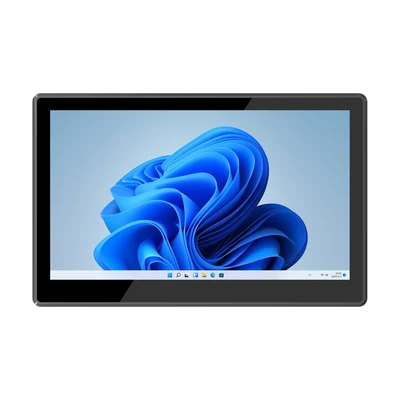
A panel PC can serve these directly if its ports match. The RT-P15J, for example, lists two Gigabit Ethernet ports, four USB Type-A ports, HDMI and two RS232 ports as standard, with a jumper-selectable RS485 option. A tablet often has fewer ports on the device itself. Check which connections the dock provides, and whether the application still works when the tablet is undocked and those peripherals disappear.
Match the operating system to the station's software
Many stations run a Windows application that already drives the printer, scale or scanner on a desktop PC. A Windows panel PC or Windows tablet can usually take over that role with the same drivers. Simpler, single-purpose stations, such as operator sign-in, work-order display or a fixed scan point, can run on an Android terminal, provided the application and peripherals support it. Our Windows selection guide lists the Windows editions available for each model.
Consider a compact terminal for simple stations
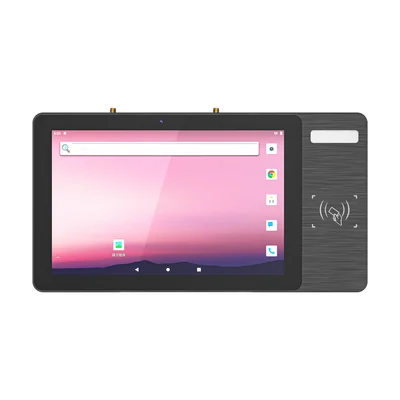
Not every station needs a full computer. Where the task is badge sign-in, a short form or a single display, a compact terminal can be enough. The RT-D10R is a 10.1-inch Android 12 unit with a built-in 13.56 MHz and 125 kHz card reader, Gigabit Ethernet, a 12 V DC input and desktop, wall or arm mounting. Confirm that your sign-in cards and application work with it before ordering.
Read the protection rating for the station you have
Panel PCs are often rated at the front only. That suits a cabinet cut-out or a wall mount, where the rear is protected, but not a station that is hosed down from every side. Our guide to front-panel IP65 on panel PCs explains where that rating ends. A rugged tablet carries a rating for the whole device; check separately whether the dock has one.
When a docked tablet is the better choice
Choose a tablet if one or more of these is true:
- Operators need the screen at the item, the rack or the vehicle, not only at the bench.
- One device must cover two stations or a station and a walk-round task.
- The station is temporary or moves with the layout.
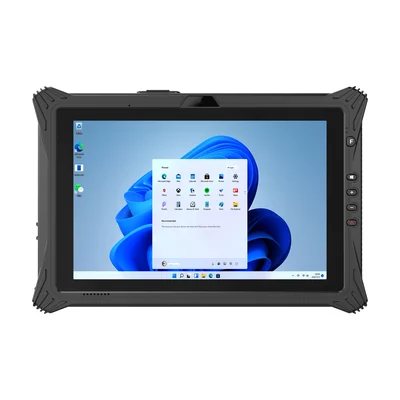
The RT-I10A is one example: a 10.1-inch Windows 11 Pro tablet with Gigabit Ethernet and HDMI on the device, a removable battery, and an optional charging dock and vehicle bracket. Our guide to rugged tablet docking covers what to verify in the dock.
What to send with your enquiry
Describe the station rather than the device: what the operator does, whether the screen ever leaves, the peripherals and their connection types, the application and operating system, the mounting position and the cleaning method. Send that through Contact and we can propose a panel PC, a terminal or a tablet configuration for the station.
Devices for this workflow