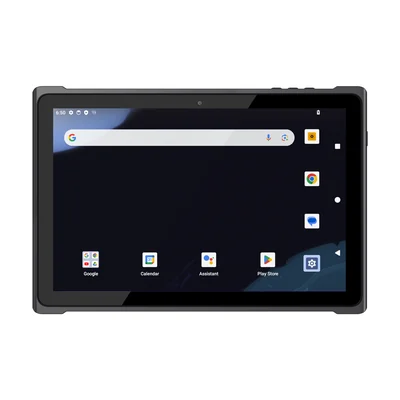
Short answer: At the dock, the receiver has one job: confirm that what arrived is what was ordered, before anyone puts it away. Decide what the device shows the receiver (the expected lines, or nothing), how each pallet or carton is identified, how over, short and damaged goods are recorded, and what happens to a pallet with no usable label. A tablet suits checking a delivery against many order lines and taking photos; a handheld suits scanning many cartons quickly. Busy docks often use both.
What receiving has to settle
| Step | What the receiver does | What the system must record |
|---|---|---|
| Arrival | Finds the order or advance shipping notice for the truck | Which delivery is being received, at which door |
| Identify | Scans each pallet or carton label | The handling unit and what it claims to contain |
| Count and check | Confirms items, quantities, batch and dates | Received quantity for each order line |
| Exceptions | Records over, short, damaged or wrong items, with photos | The difference, its reason and the evidence |
| Sign-off | Notes exceptions on the delivery document | What was accepted, and what was refused or held |
| Release | Passes the goods to putaway or to a hold area | Stock that is received but not yet stored |
Show the expected quantity, or hide it
Some warehouses show the receiver the expected quantity for each line. It is fast, but it invites confirming the number on the screen instead of counting. Others hide it, so the receiver must count and enter a figure, and the system compares. Hidden quantities take longer and catch more errors.
Choose a rule for each supplier or goods type, and make sure your warehouse software supports both modes on the device you choose.
Scan the pallet label, and read it correctly
Many suppliers label pallets with a GS1 logistics label that carries a serial shipping container code, and often the item, batch, date and quantity as well. Scanning it should fill the receipt without typing. If the software misreads the data in the code, receivers go back to keying. Our guide to GS1 barcode parsing and data mismatches explains what to test with your suppliers' real labels.
The RT-T19 lists a built-in 1D/2D barcode reader as standard. Test it on labels that are wrapped in film, creased or high on a pallet.
Over, short and damaged
Differences found at the dock can be claimed from the supplier or carrier. Differences found a week later usually cannot. For each exception, record the order line, the quantity, a reason from a short list and at least one photo taken before the pallet is moved.
The RT-T19 lists a 13 MP rear camera with autofocus and flash, which helps inside a dark trailer. Our guide to linking photos to inspection records covers keeping each photo with the right record. Agree who notes the exception on the driver's delivery document, and whether the driver signs on the device.
Pallets with no usable label
Some deliveries arrive with no label, a damaged one or a supplier label your system cannot use. The goods still need an identity before putaway. Two approaches are common: pre-printed internal labels that the receiver applies and scans, or a label printed at the dock.
For a small internal ID label, the PX-60 lists a built-in 58 mm thermal printer that takes thermal labels 30 to 58 mm wide. Full-size logistics labels are larger than that and need a separate label printer at the dock.
Tablet, handheld or both
| Tablet | Handheld | |
|---|---|---|
| Suits | Checking a delivery against many order lines; photos; supervisor review | Scanning many cartons quickly; one-handed work on a ladder or in a trailer |
| Example | RT-T19: 10.1 in, approx. 650 g (bare unit) | HX-24: 6 in, 275 g including battery |
| Watch for | Weight over a full shift | Small screen for long order lists |
Both examples run Android and list 1D/2D barcode scanning. A common split is a tablet for the receiving lead, who owns the delivery and its exceptions, and handhelds for the team scanning cartons. If receivers also drive a forklift, see our guide to vehicle computers and docked tablets on forklifts.
Wi-Fi at the dock doors
Dock doors are at the edge of the building, and trailers are metal boxes. Coverage that is fine in the aisles can drop inside a trailer. Walk a device into a parked trailer and check that a receipt still posts. Our guide to Wi-Fi roaming for warehouse handhelds covers what to check with your network team.
Decide what the application does when a scan is made without a connection: hold it and send it later, or stop the receiver.
Hand off to putaway
A receipt says the goods have arrived. It does not say where they are. Until putaway is confirmed, the stock should show as received and waiting. Our guide to putaway with barcode handhelds picks up from this point.
More warehouse devices are listed on our warehousing page.
Pilot one dock door
Run one door for two weeks with the devices you are considering. Record:
- labels that would not scan, by supplier;
- receipts where data had to be typed;
- exceptions recorded with and without a photo;
- scans lost or delayed inside trailers;
- time from truck arrival to goods released for putaway.
What to send with your enquiry
Tell us the warehouse software and operating system, sample pallet and carton labels, deliveries per day, whether you need photos or label printing at the dock, and your Wi-Fi setup at the doors. Send it through Contact, and we can suggest a configuration and arrange samples.
Devices for this workflow