Short answer: Choose the Autopilot path before you order. Classic Windows Autopilot needs each tablet's hardware hash registered to your tenant. Autopilot device preparation does not, but it supports Microsoft Entra join only and needs a recent Windows 11 build. Prove the full sign-in, policy and app sequence on one sample and one replacement unit, then scale.
Choose the enrollment path first
Microsoft currently documents two Autopilot experiences. They make different demands on the tablets and on whoever supplies them.
| Question | Windows Autopilot | Windows Autopilot device preparation |
|---|---|---|
| Does each device need to be registered in advance? | Yes. The hardware hash is uploaded to the Autopilot service and associated with your tenant. | No. If a device is already registered for Autopilot, device preparation runs only when the device is associated with your tenant; otherwise the Autopilot profile runs. To use device preparation without associating it, deregister the device first. |
| Which join types are supported? | Microsoft Entra join, or Active Directory through Microsoft Entra hybrid join. | Microsoft Entra join only. |
| Which Windows versions does it need? | A supported version of Windows. | Windows 11, version 24H2 or later, or version 23H2 or 22H2 with KB5035942 or later. |
| How is configuration targeted? | Profiles assigned to groups of registered devices. | A device security group selected in the policy; devices are added to it at enrollment. |
If your organization still needs domain-joined devices, the decision is made for you: classic Autopilot with hybrid join. If you are cloud-native, check the Windows build that will ship on the tablets before choosing device preparation.
Decide who registers the tablets
For classic Autopilot, registration is ideally done by the OEM, reseller or distributor the devices are bought from. A Microsoft Entra Global Administrator in your organization must first grant that partner permission. Registration through Partner Center is done by Cloud Solution Provider (CSP) partners.
If your supplier is not set up to register devices for you, plan for manual registration. Your team captures the hardware hash from each tablet while it is running Windows, then uploads the file through Intune. Microsoft describes manual registration as mainly intended for testing and evaluation, so for a larger batch, settle the registration route before the order.
Device preparation removes the hash step. If your Intune enrollment restrictions block personal devices, you can pre-upload corporate identifiers instead. For Windows, these are the serial number, manufacturer and model. Ask the supplier whether it can supply those values for each unit, exactly as Windows reports them, before the tablets ship.
Check the edition and the licenses
Confirm the Windows edition on the quotation. Rugged Windows tablets commonly ship with Windows 11 Pro, and Autopilot can move a device to an edition such as Windows Enterprise as part of deployment, if your licensing allows it. Automatic enrollment into Intune during setup requires a Microsoft Entra ID P1 or P2 subscription. Our Windows selection guide lists the standard and optional editions for each model.
Prove enrollment on one sample and one replacement
Run the complete sequence on a sample tablet, starting from the out-of-box experience, not from a device that someone has already set up:
- First network connection. Connect the way the field team will: site Wi-Fi, a certificate-based network or a cellular connection. Our guide to enterprise Wi-Fi certificates on rugged devices covers that step.
- Sign-in and join. Confirm that the device joins the intended directory and lands in the intended Intune group.
- Policies and apps. Check that the business application, scanner software and any serial or USB drivers install, and that the application opens the screen the operator actually uses.
- Encryption and recovery. Confirm where the recovery key is stored and that the help desk can retrieve it. See BitLocker, TPM and recovery keys on rugged Windows tablets.
- Time to ready. Record how long the operator waits and what they see. A deployment the operator abandons halfway is a failed deployment.
Then repeat the test with a second unit treated as a replacement. Rugged devices are often repaired or swapped in the field, and the replacement path needs its own test:
- After a motherboard replacement, the old hardware hash no longer matches. Plan who captures and uploads the new one.
- To retire a device from Autopilot, delete it from Intune first, then deregister it. Removing records out of order can leave orphaned or unrecoverable devices.
- If the supplier swaps a unit under warranty, check that the replacement can go through the same path as the original without manual work on site.
What to send with your enquiry
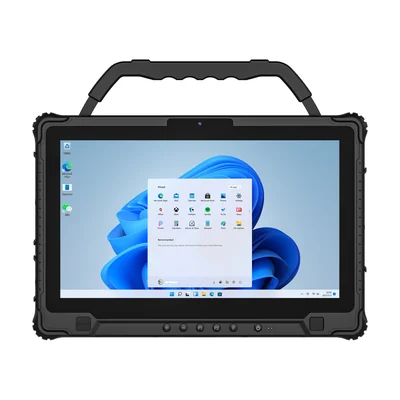
Tell the supplier, in writing, which Autopilot path you will use, the join type, whether you need corporate identifiers or registration, the Windows edition and the build you have tested. Add the applications and drivers that must be present and how the tablet will connect the first time it is switched on. The RT-I14M, for example, lists Windows 11 Pro as standard. Confirm the build and edition for the units you order. Our Integration & Support page explains what we can configure before shipment and what stays with your IT team.
References
- Microsoft Learn: Overview of Windows Autopilot device preparation
- Microsoft Learn: Windows Autopilot registration overview
- Microsoft Learn: Manual registration overview
- Microsoft Learn: OEM registration
(Microsoft updates these pages regularly. Check the current requirements before you finalize the deployment plan.)
Devices for this workflow